YouTube Transcript to Notes with n8n, Automatically

AgentLeverage Team
10/9/2026
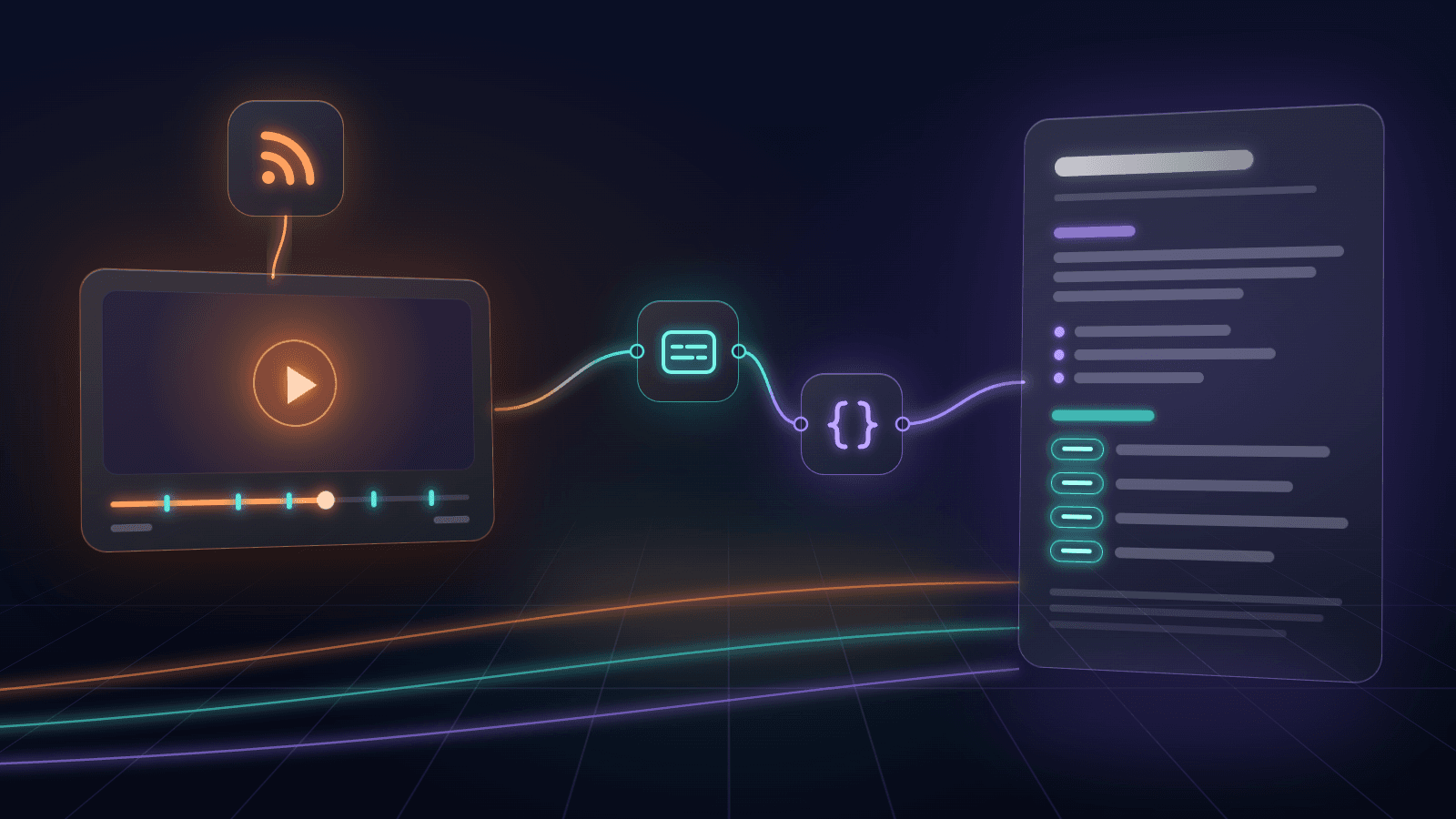
Someone sends you a 25-minute YouTube tutorial and asks what you think. Or you follow a channel that posts every week, and the videos pile up faster than you can watch them. You want the gist, the parts worth your time, and the exact words when you need a quote.
This n8n workflow turns a YouTube video into notes without you opening it. Paste a link into an n8n form, or let a channel's RSS feed trigger it when a new video goes up. n8n saves a Markdown note with a summary, the topics, key moments as clickable timestamps, and the full YouTube transcript in one-minute paragraphs. AgentLeverage YouTube Transcript pulls the captions and writes the summary. The template is youtube-video-to-notes.json, and it runs on the n8n-nodes-agentleverage community node, version 0.1.0 on npm.
If you only need one transcript and do not use n8n, get the transcript in the browser instead. This post is the n8n automation.
What the YouTube transcript flow returns
The workflow takes one YouTube URL and writes one .md file to your n8n files folder, named with the date and video title. The file holds the video link, channel, and transcript language, then a short summary, topics, and key moments. Each moment and each transcript paragraph starts with a timestamp that links to that second of the video.
A real run in self-hosted n8n 2.42.5 with n8n-nodes-agentleverage 0.1.0. The Form branch succeeded end to end on a 25-minute n8n tutorial in 11.6 seconds.
That run used "How to build a Telegram agent in n8n" from n8n's own channel. The note came back with 8 topics, 9 key moments, and 5,110 words of transcript in 25 paragraphs. Here is the top of the file, unedited:
# How to build a Telegram agent in n8n

- Video: https://www.youtube.com/watch?v=AbqPOLfLsm8
- Channel: n8n
- Last caption at: 25:27
- Transcript language: en
- Notes made: 2026-10-09 06:34

## Summary

This video demonstrates how to build an always-on AI personal assistant in Telegram using n8n's new agent feature (released September 2026), without writing code or using traditional workflows. The creator walks through setting up an agent, connecting it to OpenRouter/Anthropic models, linking Telegram as a channel, adding MCP tool integrations like Todoist, writing instructions and skills, scheduling automated tasks, and testing image recognition and expense logging. The video also covers debugging tips, cost tracking, and best practices for prompting and tool descriptions.

## Topics

- n8n agents
- Telegram bot setup
- OpenRouter integration
- MCP tools (Todoist)
- AI instructions and skills
- scheduled tasks
- multimodal image recognition
- debugging agent sessions

## Key moments

- [0:42](https://www.youtube.com/watch?v=AbqPOLfLsm8&t=42s) Introducing the new n8n Agents tab
- [3:55](https://www.youtube.com/watch?v=AbqPOLfLsm8&t=235s) Connecting OpenRouter and selecting a cheap model
- [5:26](https://www.youtube.com/watch?v=AbqPOLfLsm8&t=326s) Setting up Telegram bot via BotFather
- [9:13](https://www.youtube.com/watch?v=AbqPOLfLsm8&t=553s) Debugging a guardrail/data policy error
- [10:45](https://www.youtube.com/watch?v=AbqPOLfLsm8&t=645s) Adding capabilities: connecting Todoist via MCP
- [14:06](https://www.youtube.com/watch?v=AbqPOLfLsm8&t=846s) Explaining instructions, tool descriptions, and skills
- [18:05](https://www.youtube.com/watch?v=AbqPOLfLsm8&t=1085s) Creating a scheduled daily email-to-todo task
- [20:49](https://www.youtube.com/watch?v=AbqPOLfLsm8&t=1249s) Testing image recognition for to-do and receipt logging
- [23:38](https://www.youtube.com/watch?v=AbqPOLfLsm8&t=1418s) Reviewing session traces and cost tracking

## Transcript

[0:00](https://www.youtube.com/watch?v=AbqPOLfLsm8&t=0s) In this video, I'm building a powerful, always-on AI agent in Telegram with n8n. There isn't any code involved, and we actually aren't even using workflows. We're using the new agent feature in n8n that came out in September 2026. For this personal agent, I want it to be able to answer questions about me, do research for me, log my expenses, manage my to-do list. But to be honest, the capabilities of my agent doesn't matter that much. By the end of this video, you'll be able to make an agent to do pretty much whatever you want. So honestly, let's just dive right into it and you will see what I mean. It is super easy to set up. What do you think? Okay. Okay, now we'll get into it. And from the personal tab in here, or really any project that you're in, you'll now see this new agents tab. In the agents tab here, we can create an agent. And this is completely separate from the workflows now. So if we create an agent, it's just this new entity that's completely separate from everything else, which lets us make these much more powerful agents that are kind of
<!-- The transcript continues: 24 more one-minute paragraphs, to the last caption at 25:27. -->
In any Markdown viewer the timestamps are links. Click 9:13 and YouTube opens at the guardrail error.
Install the community node
n8n-nodes-agentleverage is on npm as 0.1.0, published with provenance. The source is Life-With-Data/n8n-agentleverage. Install it in self-hosted n8n from the UI or the CLI.
n8n UI
- Open Settings > Community Nodes.
- Select Install.
- Enter
n8n-nodes-agentleverage. - Agree to the risk warning and install.
Self-hosted CLI
cd ~/.n8n/nodes
npm install n8n-nodes-agentleverage
Restart n8n after a CLI install, then add an Agent Leverage API credential with URL https://www.agentleverage.co and a token from Settings → API tokens in AgentLeverage. n8n Cloud only lists verified community nodes, so use self-hosted n8n for now.
Import the workflow from URL
In n8n, choose File → Import from URL and paste the template address. After import, open YouTube Transcript and Wait for Transcript and pick your Agent Leverage credential on both. The other nine nodes are stock n8n and need no credential.
https://www.agentleverage.co/n8n/youtube-video-to-notes.jsonTwo settings to change before you turn it on:
- The channel to watch. The New Video node polls
https://www.youtube.com/feeds/videos.xml?channel_id=UCiHVTkJtWSdc9N3h0nUGWLg, which is n8n's own channel. Replace thechannel_idwith the ID of the channel you follow. Channel IDs start withUC. - The notes folder. n8n 2.x only lets the Read/Write Files from Disk node write inside the folder set by
N8N_RESTRICT_FILE_ACCESS_TO. The default is~/.n8n-files, which is/home/node/.n8n-filesin the official Docker image. Save Notes writes to/home/node/.n8n-files/youtube-notes/.
Walk the nodes
The template has eleven nodes. Two triggers feed one line of steps, and an If node at the end decides whether to save a note. Only YouTube Transcript and Wait for Transcript are AgentLeverage nodes.
1. New Video and Form, the two triggers
New Video is an RSS Feed Trigger that checks the channel feed every hour. Once the workflow is active, it fires only for videos published after you activated it. n8n remembers the last item's date, so it skips the back catalog. A manual test run in the editor picks up the newest video in the feed, so you can check the branch first.
Form is for any video you want notes on. It has three fields: YouTube URL (required), Caption language (optional, such as en), and If the video has no captions, with Stop or Transcribe the audio. After you submit, the form answers "Got it. The note lands in your youtube-notes folder in a minute or two."
The form n8n serves for the template, filled in for the Telegram agent video.
2. Video and Video Details
Video is an Edit Fields node that makes both triggers look the same: a url, a title, a lang, and a mode. Transcribe the audio becomes mode auto. Stop, and every RSS run, becomes native. Video Details gets the title and channel name from YouTube's oEmbed endpoint, which needs no API key.
3. YouTube Transcript and Wait for Transcript
YouTube Transcript starts a job with the URL, plus Language and Mode under Additional Fields. native uses only captions the video already has, from YouTube or the uploader. auto uses captions when they exist and transcribes the audio when they do not. Wait for Transcript polls the job every 5 seconds for up to 10 minutes. The finished job has the caption lines with start times, the language, and an analysis with a 2 to 4 sentence summary, 3 to 8 topics, and 3 to 8 key moments.
4. Build Notes
Build Notes is a stock Code node. It turns the job into Markdown, groups caption lines into roughly one-minute paragraphs, and builds each timestamp link as watch?v=ID&t=Ns. Here is the full source:
// Turn the YouTube Transcript job into a Markdown note.
const job = $json.job;
const out = job.output ?? {};
const video = $('Video').first().json;
const details = $('Video Details').first().json;

const id = out.videoId;
const title = details.title || video.title || id;
const channel = details.author_name || '';
const link = (t) => `https://www.youtube.com/watch?v=${id}&t=${Math.floor(t)}s`;
const stamp = (t) => {
  const h = Math.floor(t / 3600);
  const m = Math.floor((t % 3600) / 60);
  const s = Math.floor(t % 60);
  const mm = String(m).padStart(h ? 2 : 1, '0');
  return (h ? `${h}:` : '') + `${mm}:${String(s).padStart(2, '0')}`;
};

// Group caption lines into roughly one-minute paragraphs.
const paragraphs = [];
for (const s of out.snippets ?? []) {
  const text = s.text.replace(/\s+/g, ' ').trim();
  if (!text) continue;
  const last = paragraphs[paragraphs.length - 1];
  if (last && s.start - last.start < 60) last.text += ' ' + text;
  else paragraphs.push({ start: s.start, text });
}

const a = out.analysis ?? {};
const words = paragraphs.reduce((n, p) => n + p.text.split(' ').length, 0);
const lines = [
  `# ${title}`,
  '',
  `- Video: https://www.youtube.com/watch?v=${id}`,
  channel ? `- Channel: ${channel}` : null,
  `- Last caption at: ${stamp(out.durationSeconds ?? 0)}`,
  `- Transcript language: ${out.language}`,
  `- Notes made: ${$now.toFormat('yyyy-MM-dd HH:mm')}`,
  '',
  '## Summary',
  '',
  a.summary ?? '',
  '',
  '## Topics',
  '',
  ...(a.topics ?? []).map((t) => `- ${t}`),
  '',
  '## Key moments',
  '',
  ...(a.moments ?? []).map((m) => `- [${stamp(m.start)}](${link(m.start)}) ${m.label}`),
  '',
  '## Transcript',
  '',
  ...paragraphs.map((p) => `[${stamp(p.start)}](${link(p.start)}) ${p.text}\n`),
].filter((l) => l !== null);

const slug = title.toLowerCase().replace(/[^a-z0-9]+/g, '-').replace(/^-|-$/g, '').slice(0, 60);

return [{
  json: {
    videoId: id,
    title,
    fileName: `${$now.toFormat('yyyy-MM-dd')}-${slug || id}.md`,
    words,
    moments: (a.moments ?? []).length,
    paragraphs: paragraphs.length,
    notes: lines.join('\n'),
  },
}];
The output adds the file name and counts of words, moments, and paragraphs.
Build Notes from the same run. Input on the left, code in the middle, output on the right.
5. Enough Speech?, Notes File, and Save Notes
Enough Speech? is an If node that checks for at least 50 words. If there are, Notes File converts the notes text to a file and Save Notes writes it to the youtube-notes folder. If not, the run ends at Skip Note and no file is written.
A run on a short cooking clip with no captions, with Transcribe the audio selected. Too few words came back, so Skip Note ran and no file was saved.
The output is a Markdown file on disk because that is what this run used. You could swap Save Notes for a Notion, Google Docs, or Slack node that takes the notes text. That version was not run for this post, so test it first.
What you still review
Check the note before you quote it or act on it.
- No captions in Stop mode means no note. The run fails at Wait for Transcript with "No transcript is available for this video." and the 2 credits come back automatically.
- Transcribe the audio can return words nobody said. On a short cooking clip with no captions, auto mode took 85 seconds and returned a Vietnamese line asking viewers to subscribe to an unrelated channel. It was charged. Enough Speech? skipped the note because only 32 words came back. Read audio transcriptions before you trust them.
- A video with no dialogue can still be charged. A short film with no speech returned one caption, "Thank you.", and a summary saying there was no content. Enough Speech? skips notes like that, but the credits are spent.
- Long videos may get a summary of the first part only. The summary and key moments read at most the first 40,000 characters of the transcript. The full transcript is still in the note.
- "Last caption at" is not the video length. It is when the last caption ends, which can be earlier than the end of the video.
- Some videos fail for reasons the job does not show. A long rain-sounds video failed in both modes with "Could not retrieve the transcript. Please try again later." Both runs were refunded.
Cost and limits
YouTube Transcript costs 2 credits per run, flat, whatever the video length. Failed runs are refunded. New accounts get 30 free credits with no card. See pricing. Wait for Transcript times out after 10 minutes. If you choose Transcribe the audio for long videos, raise timeoutMs on that node.
If your source is a call recording, not a YouTube video: label who said what on the call in n8n
If you want a recap, decisions, and action items from a call: turn the recording into minutes in n8n
Frequently asked questions
How do I get a YouTube transcript in n8n?
Install the n8n-nodes-agentleverage community node in self-hosted n8n and add an Agent Leverage API credential. Run the YouTube Transcript node's Create operation with a video URL, then a Job > Wait node for the finished transcript. The template on this page adds a form, an RSS trigger, and a Code node that writes the note.
Can n8n make notes from a whole channel automatically?
Yes, for new uploads. Put the channel's ID in the New Video feed URL and activate the workflow. n8n checks the feed every hour and makes a note for each video published after activation. Paste older videos into the form one at a time.
What if the video has no captions?
In Stop mode, the run fails with "No transcript is available for this video." and the credits are refunded. Transcribe the audio is slower and can return text that is not in the video when there is little talking, so read the result.
Is this a YouTube video transcript generator?
It is a YouTube video transcript generator that runs inside n8n. It saves the full timestamped transcript with a summary, topics, and key moments in one Markdown note. For a one-off transcript without n8n, use the YouTube Transcript tool in the browser.
Try it yourself
YouTube Transcript Analysis
Paste a YouTube link to get a timestamped transcript with an interactive player — click any line to jump to that moment — plus an AI summary, key topics, and notable moments.
Start with 30 free credits — no card required.
Related Articles
Speaker Diarization with n8n: Label Who Said What on a Call
Upload a call recording to an n8n form and download a .txt transcript with a name on every turn. Free template and the n8n-nodes-agentleverage node.
Need YouTube Words? Skip the Download and the Watch
Need the words from a YouTube video without downloading or sitting through it? Paste the link for a timestamped, click-to-seek transcript plus an AI summary.
Call Recording to Minutes in n8n
Upload a call recording in n8n, run Speaker Separation, then Minutes from that job. Install n8n-nodes-agentleverage. You still rename Speaker A and review.
Get weekly AI tips
Practical AI productivity tips every week. No fluff.